Hello 
It often happens that you’re interested in images uploaded within a specific topic, either because you’re looking for an older one or just want to admire the best sets. In such popular topics (like “Show what you’ve got 5.0”), you would have to sift through hundreds, sometimes thousands of posts to find the photos. From now on, you won’t have to scroll through this vast number of posts if you’re only interested in the pictures.
What is a Topic Gallery?
This is a separate view that collects all the photos scattered throughout a given conversation into a single, transparent interface.
It’s not just a simple image list. We’ve refined a lot under the hood to give you the best experience:
- Accurate Authors: For every image, you’ll see who posted it in that specific topic.
- Quick Navigation: If an image catches your interest, you can jump to the exact post where it appears with a single click, allowing you to read the associated description immediately.
- Grid Support: If someone uploaded multiple images at once (a gallery in the post), they will also be nicely linked and included in the gallery view.
How does it work?
You can enter the gallery view by clicking the button located near the topic timeline.
In desktop view
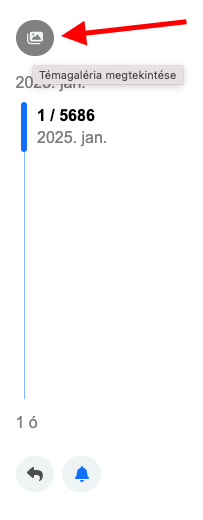
In mobile view

After clicking, you’ll immediately see the visual summary.
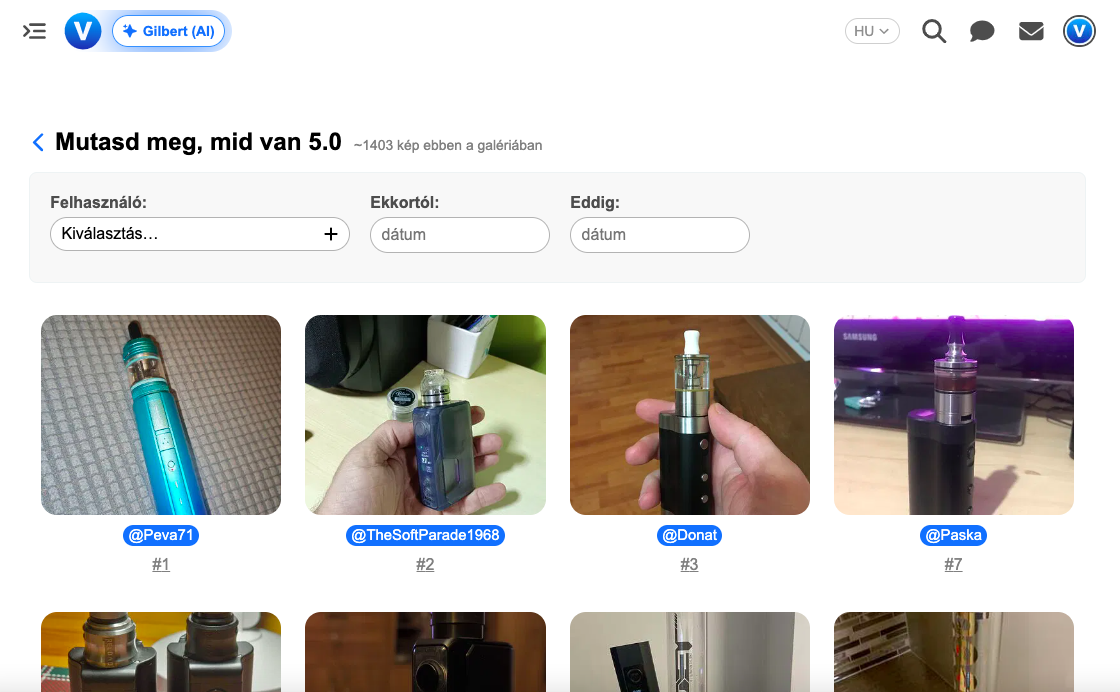
The gallery consists of 3 parts:
- At the top, you can see the topic title, which allows you to return to the topic, and next to it, there’s an approximate count of how many images are in the given topic.
- Below the title, there is a filter that allows you to filter by user and date.
- Below the filter is the gallery, where clicking on images allows you to view the full-size image in a lightbox. Below the images, the author and the post number in that topic where the image appears are displayed. Clicking on the author’s name will display their profile card, and clicking on the post number will jump to that specific post in the topic where you can read further descriptions related to the image.
In the topic gallery, if you hover your cursor over an image, it will get a background. This background indicates which images are in the same post.
For example, these images are in the same post (#14), so we indicate this for both with the background to show they belong together.

We hope this will make browsing content in larger, more crowded topics even more convenient, easier, and user-friendly. 
 This was needed just like electricity was for the village back then… it’s a huge help.